| Topic | Supported detail | Planning use |
|---|---|---|
| Plain resizing | Topaz describes traditional upscaling as stretching pixels, which gives blurry or low-quality images | Treat it as the baseline an AI result has to beat, not the default for photos |
| AI reconstruction | Upscale.media offers 2x, 4x or 8x and says it reconstructs details instead of stretching pixels | Pick the smallest factor that fits the layout |
| Upscale.media input limit at 4X | 5,000 x 5,000 px for logged-in users; 2,500 x 2,500 px for guests | Check the source dimensions before uploading |
| Topaz browser tool and Gigapixel | Up to 8x resolution in the browser tool; up to 16x pixels for Gigapixel | Read these as ceilings, not targets |
| Separate cleanup tools | Topaz lists Denoise Image and Sharpen Image beside upscaling | Decide on noise reduction and sharpening as their own steps |
These figures come from the Upscale.media and Topaz tool pages and describe each vendor’s stated capabilities.
Learn how to upscale image files without blur: pick an AI upscaler instead of plain resizing, test the lowest scale factor first, and judge the result at full size. Expect reconstructed detail, so check faces and text closely.
Enlargement is one step in the wider job of how to edit photos for a website, alongside cropping, cleanup and file-size control.
Where upscaled images break down
Upscaling fails when the enlarged file looks softer, blockier or more artificial than the original at the size it will be shown. Cloudinary notes that traditional resizing often leads to pixelation or blurriness, and Photiu.ai says the same: traditional resizing often makes photos blurry or pixelated.
Blur and pixelation
Plain resizing spreads existing pixels over a larger area, and no new detail is added. On an image-led page that softness lands in the most visible place, such as a hero banner or a product shot. That is the main reason to run a proper upscaler before publishing, rather than relying on a simple resize.
Over-processed or invented-looking detail
AI tools can fail in the opposite direction. Photiu.ai says its AI analyzes patterns in the image and rebuilds fine detail while avoiding over-sharpening, which names over-sharpening as a failure the tool is designed to avoid. Treat that as a vendor description and verify it yourself. Skin, eyelashes, hair and small text show an unnatural result first, so inspect those areas before anything else.
Source files outside tool limits
Some failures happen before any pixels change. At the 4X setting, Upscale.media lists a 5,000 x 5,000 px input for logged-in users and 2,500 x 2,500 px for guests. A large camera original may exceed the guest limit, so check dimensions first and decide whether to log in or use another tool.
Choosing an upscaler for the job
No single tool wins on every image. The deciding factors are how many files you have, what input limits apply, and whether you need cleanup tools or automation alongside the enlargement. The options below suit different jobs.
- Upscale.media for quick single images. Its page presents a free tool that enlarges low-resolution images with AI at 2x, 4x or 8x, with watermark-free output. It suits a one-off asset where you want to compare scale factors.
- Photiu.ai for small sets. Photiu.ai upscales by 2x or 4x while aiming to preserve real details and natural textures, and accepts up to 50 images per batch. It suits a short run of related photos, such as a gallery.
- Topaz for larger factors and cleanup. Topaz advertises browser upscaling up to 8x resolution and Gigapixel upscaling up to 16x pixels. Denoise Image and Sharpen Image appear as separate tools, which suits work where noise reduction matters as much as size.
- Cloudinary for web pipelines. Cloudinary lets you batch upscale web images in the browser and offers a free API so developers can upscale automatically. It also selects the most efficient next-generation format for delivery, which suits sites that process many images repeatedly.
For a single hero photo, run the same crop through two tools and keep the more natural result. For a catalogue, batch limits and API access matter more than small differences in texture.
Why AI upscaling beats plain resizing for photos
Cloudinary defines image upscaling as increasing the resolution of a digital image while keeping it clear when enlarged. The method decides whether that clarity is real. Topaz says traditional methods stretch pixels, giving blurry or low-quality images, while its AI upscaling intelligently restores lost details to create a sharper result.
Other vendors describe the same split. Upscale.media says it reconstructs the details of the image instead of just stretching pixels, and Photiu.ai describes rebuilding fine detail from patterns it finds in the image. The practical consequence is that added detail is reconstructed rather than captured. Compare the output against the original instead of assuming every new texture is accurate.
- Choose AI reconstruction for photographs with faces, skin, foliage or fabric, where stretched pixels look worst and a plausible texture is acceptable.
- Keep plain resizing for modest enlargements of an already sharp file, where a reconstruction step adds risk without a visible gain.
- Switch tools, not settings when a result looks artificial. A different model often fixes what a different slider cannot.
Noise reduction and sharpening around the upscale
Noise reduction is a separate decision from enlargement. Topaz lists Denoise Image and Sharpen Image as their own tools next to upscaling, which suggests treating them as separate passes. Save each result separately so you can see which step introduced a change.
Photiu.ai highlights avoiding over-sharpening as part of its approach. If the upscaled image already looks crisp, a heavy extra sharpening step risks the harshness the tool is designed to avoid. Apply sharpening only when the result looks soft, and check smooth areas such as skies and skin for halos afterwards.
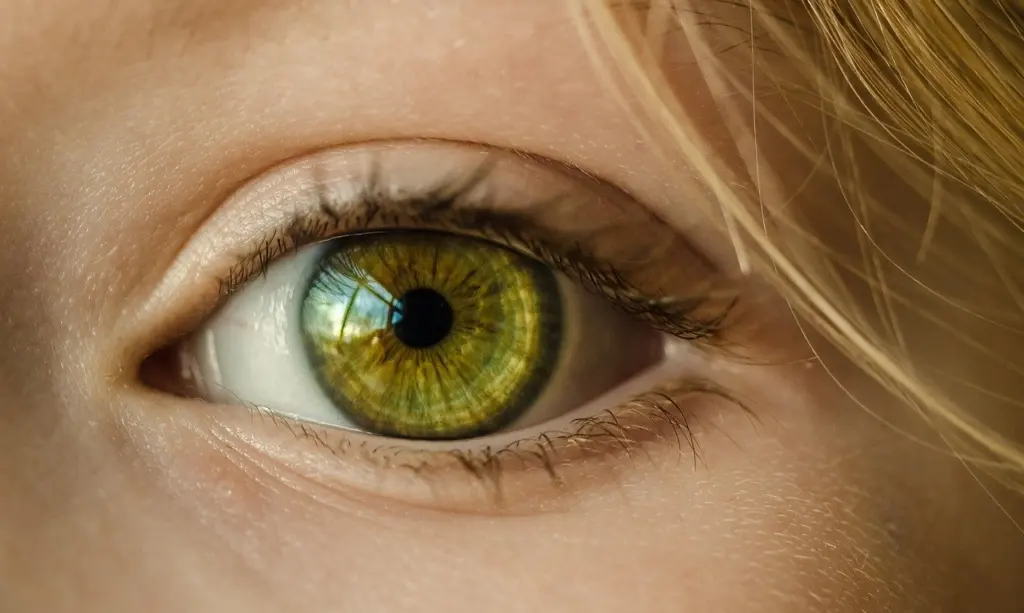
Treat noise reduction cautiously on textured subjects. Removing grain completely can leave a plastic look that no later step repairs, so reduce it only as far as the image needs.
A workflow for web assets
The aim for web use is an image that looks natural at the size the layout displays it, at a file weight the page can carry.
- Keep the original untouched. Work on a copy so you can return to the source if a result looks wrong.
- Check dimensions and format. Compare the source with the tool’s input limits, such as those on Upscale.media, before uploading.
- Start at the smallest factor. Both Upscale.media and Photiu.ai offer 2x, which is enough for many layouts. Step up only if the display size demands it.
- Inspect at full size. Look at eyes, edges, text and smooth gradients before judging the image as a whole.
- Clean up only if needed. Run denoise or sharpen as separate steps and compare each against the plain upscale.
- Export and shrink the file. Enlarged images are heavier, so follow Compress Images Free: The Fast, Easy Guide To Reduce File Size Without Losing Quality (2026) – Imagesup before publishing.
Match the multiplier to the layout rather than to the tool’s maximum. The 8x and 16x figures on the Topaz page are ceilings, and a smaller factor that looks natural is the better asset. If the image also needs a transparent cutout, handle that separately with How To Remove Background From A Picture: Fast Methods For 2026 (No Design Skills Needed) – Imagesup.
Frequently asked questions
How long does AI upscaling take?
A Hackernoon walkthrough by Louis Bouchard describes an enhancement by a factor of four done within a few seconds, completely automatically. Actual time depends on the tool and the file.
Does upscaling change who owns an image?
No. Photiu.ai states that upscaling improves resolution and clarity but does not change ownership or copyright of the original file, so commercial use still requires rights to the original image.
Which file formats can I upload?
Upscale.media accepts png, jpeg, jpg, webp and heic, while Photiu.ai lists JPG, PNG and WEBP. Convert a HEIC file first if you choose Photiu.ai.