| Decision | Starting point | Planning use |
|---|---|---|
| Format for photos you publish | JPEG, which suits online posting | Export the finished copy as JPEG for the page. |
| Format for a copy you keep | TIFF or PNG, which suit printing or preserving quality | Store a high-quality master so later edits do not start from a compressed file. |
| Free editor in a browser | Canva, free for basic and advanced edits | Pick it when you want quick results without installing anything. |
| Free editor on a desktop | GIMP, free to download for Windows, macOS and Linux | Pick it when you want deeper manual control and can live without built-in AI tools. |
These starting points come from Wix’s photo editing guide and Shopify’s editor roundup.
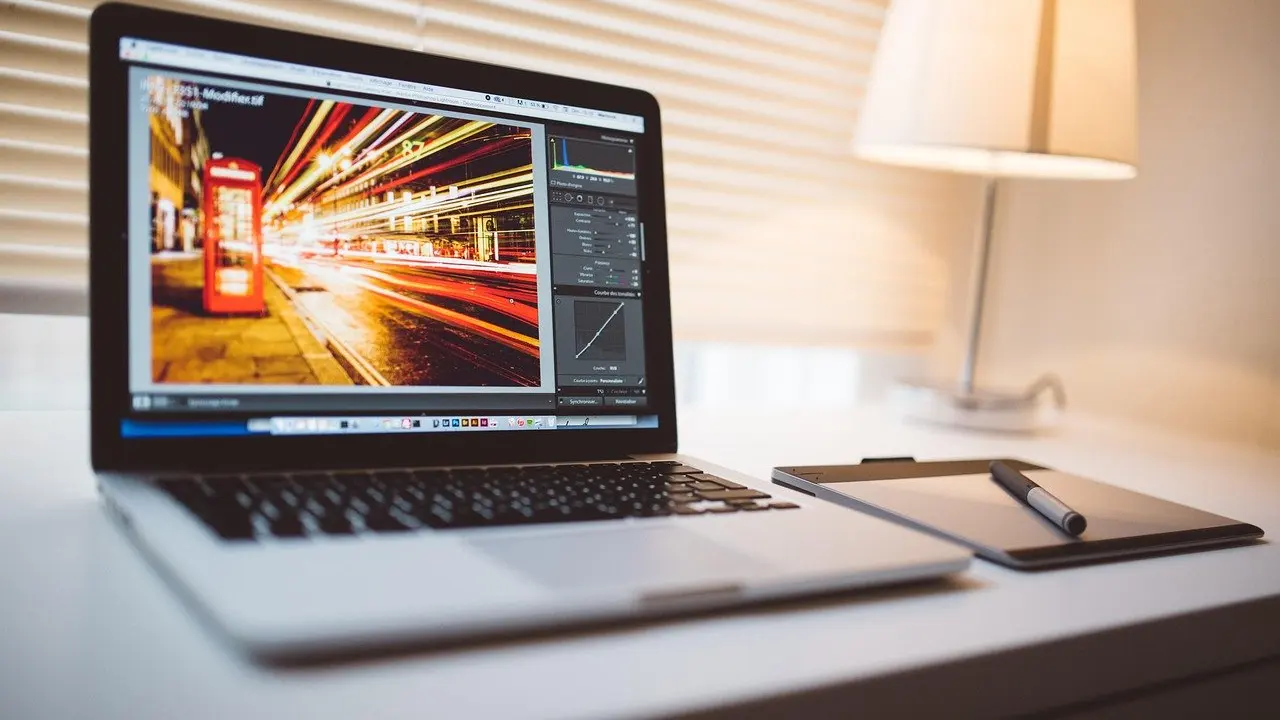
To learn how to edit photos for a website, work in a fixed order, keep a high-quality master, and export a JPEG copy for the page. Choose the editor to match how much control you need.
Format decisions have their own detailed guide: Best Image Format For Web: Choose Fast, Sharp Images In 2026 – Imagesup. This page covers the whole editing path, from the first crop to the final export, and points to specialist guides for single jobs.
A workflow for editing website photos
An editing workflow for a website is a sequence of corrections that move from composition to tone to colour to finish, ending with an export. Wix’s guide breaks a typical edit into eight steps: crop and resize, clean up, straighten, exposure and contrast, sharpen, white balance, vibrancy, and a final filter. Doing the steps in that order keeps each correction from undoing the one before it. Composition changes alter what the rest of the image contains, so they come first. Tonal and colour changes depend on the final frame, so they come after.
Crop and resize first
Cropping refines the composition and lets you direct attention to the most important elements, as Wix explains. On a website the crop also has to suit the slot the image will fill: a wide banner, a square card and a tall sidebar image each want a different frame. Decide where the photo will sit before you cut, and keep the uncropped original so that a different layout later does not force you to start over.
Resizing belongs in the same early stage because every later adjustment is then applied to the pixels you will actually publish. Shrinking an image is where quality is most often lost by accident, so it deserves its own method. The guide on how to resize an image without losing quality covers it in detail. If a photo is too small for its slot and you need to go the other way, the walkthrough on How To Upscale Images Fast: A Practical 2026 Guide To Sharper Photos Without Artifacts – Imagesup explains how to enlarge without visible artefacts.
Clean up and straighten
Clean-up means removing the things that distract from the subject: dust marks, stray objects, an unwanted passer-by. Straightening corrects a tilted horizon or leaning vertical lines, and it is a quick fix with a large visual payoff. A crooked horizon makes an otherwise good photo look careless, so check this before you move on to tone.
- Removing people: when strangers spoil an otherwise usable frame, the steps in How To Remove People From A Photo: Simple, Safe Methods For Clean Backgrounds (2026 Guide) – Imagesup show how to clear a background without leaving obvious patches.
- Replacing the background: product shots and portraits often look better against a plain or transparent backdrop, which is the subject of How To Remove Background From A Picture: Fast Methods For 2026 (No Design Skills Needed) – Imagesup.
- Logos and animation: flat artwork and moving images need different handling, covered in Remove Background From Your Logo Free: 3 Quick Methods To Get A Clean, Transparent Logo In 2026 – Imagesup and How To Remove A GIF Background: Fast Methods For Transparent Animated GIFs (2026) – Imagesup.
- Protecting privacy: if a face or a number plate should not be identifiable, how to blur a face in a photo explains the options.
Keep in mind that not every tool offers every clean-up feature. Shopify’s review notes that the desktop version of Apple Photos does not offer background removal, so a photo that needs a cut-out may have to go through a different editor.
Exposure, contrast and white balance
Exposure and contrast set how bright and punchy the picture looks, and they usually do more for a weak photo than any other single change. White balance comes next. When whites look tinted, Wix advises moving the temperature slider toward the warm or cool end until the whites return to a neutral state. Use something in the frame that should be white or grey as your reference, and judge on a screen you trust, because a tint is easy to miss on a display that is itself off.
Blown highlights deserve separate attention. A bright sky or a pale shirt that has lost its detail cannot be rescued by simply pulling the brightness down, and the techniques differ depending on how much information remains. The guide to how to fix overexposed photo walks through recovery methods. Working from a RAW file gives more headroom here, since the Adobe community notes that the JPEG format uses lossy, destructive compression to create small files and so leaves less room for correction.
Sharpen with restraint
Sharpening makes edges crisper, which helps images read well at the small sizes common on web pages. It is also the easiest adjustment to overdo. Wix warns that over-sharpened photos can look grainy or unrealistic, so raise the amount gradually and stop as soon as the detail looks clear rather than processed. Check at the size the image will be displayed, not only zoomed in, because a halo that is obvious when magnified may be invisible on the page, while a heavy-handed setting can still show up as texture noise.
Vibrancy, filters and presets
Vibrancy lifts muted colours without pushing already strong ones into garish territory, which makes it a safer first move than raising overall saturation. A filter is the last and most optional step. Use one only if it supports a look you want across the whole site, because a single heavily filtered image among naturally coloured ones reads as inconsistent.
That consistency is where presets pay off. Wix describes a preset as essentially a saved set of edits that saves time and gives repeatable results. If your site publishes many photos from the same shoot or location, build one preset, apply it, and then fine-tune each image only where it needs it. The tutorial on how to create a lightroom preset shows how to build one for a site-wide look. For a stripped-back, timeless treatment, how to make a photo black and white explains how to convert without flattening the tones.
Choosing a file format
JPEG is the practical choice for the version of a photo that visitors download. According to Wix, JPEG is great for online posting, while TIFF or PNG works better for printing or preserving quality. The sensible split is therefore two files per important photo: a working master that keeps quality, and a JPEG export for publication.
JPEG for the published copy
The reason JPEG suits publishing is its compression. The Adobe community describes the format as using lossy compression to create small files, and the trade-off is that detail discarded during saving cannot be recovered. That is acceptable for a final export and risky for a working file. Never keep re-saving the same JPEG through repeated edits. Return to the master each time you need a new version.
Photos from phones sometimes arrive in a format that browsers and editors handle awkwardly. If yours do, How To Change HEIC To JPG: Fast, Free Methods For Any Device (2026) – Imagesup explains how to convert them on any device. Files sourced online may also come as AVIF or WebP, according to Shopify’s review, so check what you have before you open it in an editor.
TIFF, PNG and PSD for masters
For the master, the choice is between layered working files and flattened lossless ones. A discussion among Lightroom users reports no quality difference between TIFF and PSD, but TIFF is more portable for long-term use: it avoids the compatibility problems that arise when PSD files are saved without ticking the Maximise Compatibility box. The same thread says that if you choose one of TIFF’s compression options, the file size ends up about the same as the PSD.
| Format | Best role | Size and quality | Planning use |
|---|---|---|---|
| JPEG | Online posting | Lossy compression, small files | Use for the exported copy on the page. |
| TIFF | Printing or preserving quality; long-term master | Size is about the same as PSD when a compression option is chosen | Use for a portable master that opens reliably across applications. |
| PNG | Printing or preserving quality | Suited to keeping quality | Use when a lossless copy is needed without layers. |
| PSD | Layered Photoshop work | No quality difference from TIFF reported | Keep only if Maximise Compatibility is ticked on save. |
The format roles come from Wix, and the TIFF and PSD comparison comes from a Lightroom Queen forum thread.
Moving between formats is a common chore. When a PNG screenshot or graphic needs to become a smaller photo file, convert png to jpg explains how to do it with the least damage. Once a JPEG exists, reducing its weight further is a separate step handled by Compress Images Free: The Fast, Easy Guide To Reduce File Size Without Losing Quality (2026) – Imagesup.
Choosing an editor
The best editor is the one that covers the eight workflow steps with the least friction for your situation. The facts available point to three groups: free browser-based tools, free desktop software, and Adobe’s subscription products. Cost, platform and built-in features are the criteria that separate them most clearly.
| Editor | Access and cost | Notable features and limits | Planning use |
|---|---|---|---|
| Canva | Free for basic and advanced edits, runs in a browser; paid tools were $120 per the reviewer in June 2025 | Reviewer’s likely best free pick for most users | Start here for quick web edits without installing software. |
| GIMP | Free, open source, community maintained; Windows, macOS, Linux | No native AI-powered tools at the time of review | Choose for manual control on a desktop. |
| Apple Photos (desktop) | Included with the Apple system | No background removal | Fine for basic tone edits, not for cut-outs. |
| Adobe Photography Plan | Includes Photoshop and Lightroom Classic with 1 TB cloud storage | All photo editing features | Choose when you need layered retouching as well as photo management. |
| Lightroom CC plan | 1 TB cloud storage | RAW processing and Lightroom Classic access, but no Photoshop | Choose when you do not need Photoshop. |
Free-tool details come from Shopify’s roundup of online photo editors, and plan contents come from 2Go Software’s Adobe selection guide.
Free options
Shopify’s reviewer concludes that Canva is likely the best free photo editing tool for most users, with ecommerce sites in mind. The reasons are practical: it is free for both basic and advanced edits and works entirely inside the browser, so nothing has to be installed and the same tool is available on any machine. That makes it the natural starting point if your edits are mostly crops, tone adjustments and layouts.
GIMP suits a different reader. It is a highly capable open-source editor maintained by volunteers and completely free to download. It gives you desktop-grade control for tasks that need patient manual work, and its lack of built-in AI tools, which Shopify singles out as unusual among modern editors, matters mainly if you rely on one-click automatic fixes. If a task is mostly automatic, such as cutting out a subject, lean on a browser tool or follow a method guide. If it is mostly manual, GIMP loses little.
Adobe Photoshop and Lightroom
Adobe Photoshop and Lightroom divide the work between them. Lightroom is built around processing and organising many photos, which is why presets and RAW handling sit there. Photoshop is where layered retouching happens. According to 2Go Software, the Photography Plan bundles Lightroom Classic and Photoshop with 1 TB of cloud storage, while the Lightroom CC plan offers 1 TB of cloud storage, RAW file processing and Lightroom Classic access but does not include Photoshop. If you do not expect to need layers, the cheaper Lightroom plan covers the editing steps described above.
Lightroom Classic also works offline on the desktop, without relying on cloud storage. That is a real advantage if you edit on a laptop away from a reliable connection or prefer to keep files local.
How to decide
- Occasional edits for a small site: use Canva first. It costs nothing to try, and its paid tier only becomes relevant if you hit a limit.
- Manual retouching with no subscription: use GIMP, accepting that you will do by hand what other tools automate.
- A large library with a consistent look: a Lightroom plan fits, because presets and batch handling are the point of the product.
- Heavy compositing or detailed layers: the plan that includes Photoshop is the one to look at.
Specialist edits for web pages
Some jobs sit outside the core workflow but come up often when you build image-led pages. Each has its own technique, so treat these as separate tasks rather than extra steps in every edit.
- Circular crops: avatars and team photos often need a round frame, which how to crop a picture into a circle covers step by step.
- Protecting your work: if your photos are original and you want them marked, how to watermark photos explains how to add a mark without ruining the picture.
- Animated images: clips become short looping files through how to make a gif from a video, and once a GIF exists, how to compress a gif shows how to keep it light enough to publish.
Treat each of these as a branch from the main workflow. Finish your tonal and colour work first, then apply the specialist step on the corrected image, and export last. That order stops you from, for example, watermarking an image and then discovering you need to recolour it.
Putting a routine together
A routine is what turns the individual tips above into a site that looks coherent. Start with the master and crop it for the slot. Make the corrections in sequence, from clean-up through to vibrancy. Apply a preset if you have one, check the result at its display size, then export a JPEG for the page and keep the master untouched. Because a preset is a saved set of edits, the only per-photo decisions left are the ones that genuinely differ from image to image.
When a result looks wrong, go back one step rather than adding a compensating adjustment. A muddy image is usually an exposure or white balance issue, not a vibrancy one, and an image that looks grainy is often a sharpening issue rather than a camera one. Fixing the cause early keeps edits small and gives you cleaner files to export.
Frequently asked questions
Does file size decide how large I can print a photo?
No. Adobe community guidance says how large you can print an image depends on its pixel dimensions, not its file size. Keep the full-resolution master if print is a possibility.
Which free photo editor is best?
For most users, Shopify’s reviewer considers Canva likely to be the best free option, since it is free for basic and advanced edits and works in a browser. GIMP is the alternative if you prefer a free desktop application.
Can GIMP open WebP files?
Yes. Shopify’s review says GIMP handles nearly any image type, including the AVIF and WebP files you may find online.
Do I need cloud storage to use Lightroom Classic?
No. 2Go Software notes that Lightroom Classic lets you work offline without relying on cloud storage.
Is a TIFF master better than a PSD?
Not for quality, since no difference is reported. TIFF is more portable because it avoids the problems PSDs can have when saved without Maximise Compatibility ticked.