The best image size for website layouts is the smallest file that still fills its slot sharply. Match pixel dimensions to the placement, start from a larger original and scale down, and serve smaller versions to phones.
Image sizing is one part of image-led layout. The wider principles sit under web design with images best practices, while the sections below cover how size affects speed, dimensions by placement, file weight and responsive delivery.
How image size affects speed and layout
Two separate properties are at work. Pixel dimensions decide how big the image appears on the page, as Callia Web’s guide to image size and aspect ratio puts it. File weight decides how long the browser waits for it. A photo can have the right dimensions and still be too heavy, and a light file can still look soft if its dimensions are too small for the slot.
That distinction matters because speed feeds directly into how pages are judged. Raygun’s guide to optimal image size defines optimisation as reducing file size without sacrificing quality, and names format, compression and dimensions as the levers. It also gives the benchmarks that image work is measured against:
- Largest Contentful Paint (LCP): aim for less than 2.5 seconds. This is one of the Core Web Vitals measures.
- First Contentful Paint (FCP): Google considers anything above 1.8 seconds moderate or slow.
- Overall load time: a good goal is under 3 seconds. Raygun cites Google research showing that going from 1 second to 3 seconds raises bounce rate by 32%.
- Layout shift: slow-loading images are a common cause of cumulative layout shift (CLS), so a late-arriving picture can also move the content around it.
The practical reading is that image choices are performance choices. Every placement on a page should have a deliberate size and a deliberate file weight, rather than whatever the camera or design tool exported.
Dimensions by placement
Right-sizing starts with the slot the image will fill. The table gives the placement figures that are clearly supported, along with how to use them.
| Placement | Size and condition | Planning use |
|---|---|---|
| Full-width header or banner-style hero | 1600 x 400 px, a 4:1 aspect ratio | Use as the starting ratio for wide, shallow strips. A taller hero needs its own ratio rather than this one stretched. |
| Portrait photo | Minimum 680×680 pixels, uncropped original | Keep the uncropped original so the same portrait can be cropped to suit different layouts later. |
| Any placement | Larger source scaled down, never a small source scaled up | Check that the source is at least as large as the largest slot it will fill. |
Header and ratio figures come from Callia Web, and the portrait minimum comes from the WashU Arts & Sciences website image guide.
Full-width headers and hero images
Aspect ratio is the proportional relationship between an image’s width and height, and it is what makes a header feel balanced. A 4:1 header is a shallow strip, so it suits a banner above a heading better than a tall, photo-led opening screen. If the hero image carries the page, decide its ratio first, then size the file to match. Hero placements in full layouts are shown in Landing Page Design Samples: 12 High-Converting Layouts & Why They Work In 2026 – Imagesup, which is a useful reference when choosing between a shallow strip and a large opening image.
Portraits and other cropped images
The WashU guide asks for portraits at a minimum of 680×680 pixels, supplied as the uncropped original. The reasoning carries over to any image that will be cropped in more than one place, such as a team photo that appears as a square on one page and a wider block on another. Supply the original and crop per layout instead of cropping once and enlarging.
Scale down, never up
Callia Web’s rule of thumb is to make a larger image smaller, not the other way around, because scaling images up loses quality and enlarging a small image causes pixelation. This is the main pitfall in sizing: a file that is light because it is tiny will look worse than a larger one properly compressed. Pixel dimensions set the ceiling on sharpness, and compression then decides how much of it survives.
File size targets and formats
Rather than one kilobyte figure for every image, set a budget per placement and judge it against page-level results: a load time under 3 seconds and an LCP under 2.5 seconds, as described by Raygun. A decorative strip can be compressed harder than a product photo a buyer will inspect, so the budget should differ by role.
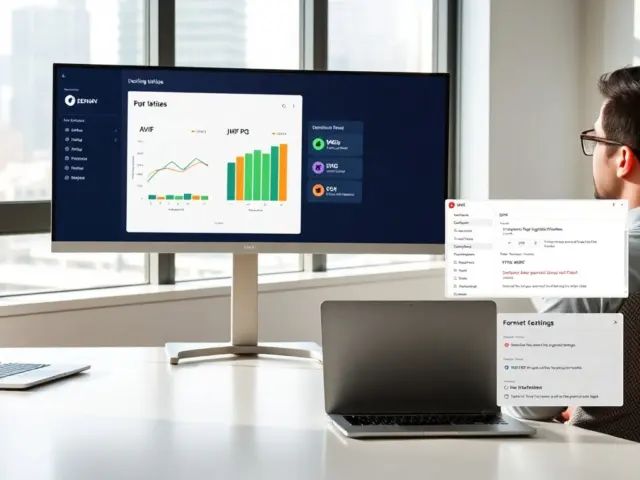
Format is usually the quickest saving. Fasterize’s comparison of WebP and AVIF reports these reductions:
- WebP versus PNG: WebP is 26% smaller at equal quality, so it is the obvious replacement for photographic or graphic PNGs where transparency is not the deciding factor.
- WebP versus JPEG: WebP is 25-34% smaller at equal quality, and all recent browser versions support it. It is a safe default for photos.
- AVIF versus JPEG: on average an AVIF file is about 50% lighter than a JPEG. It suits large images such as hero banners, where savings are greatest, provided a fallback is in place.
These are reductions relative to another format, not absolute targets, so treat them as an indication of how much a format switch can help rather than a promise for every image. Fasterize also notes that compression can be set higher for mobile devices, which fits the idea of budgets that differ by device. Another useful point from the same source is that an image whose sole role is to illustrate a page can easily withstand lossy compression, so reserve gentle settings for images where detail is the point.
Format choice also depends on content and browser support, as noted in a LinkedIn advice article on hero images, which lists JPEG, PNG and WebP as options chosen by support and content. For a site that already publishes JPEGs, converting the largest images first usually gives the biggest gain for the least work. Portfolio sites, where images carry the whole page, feel this most; the layout advice in Web Developer Portfolio Website: How To Build A Standout Portfolio In 2026 – Imagesup pairs naturally with these budgets.
Responsive delivery with srcset and breakpoints
A single file cannot be ideal for every screen. A version sharp enough for a large desktop display is wasteful on a phone, and a phone-sized version looks soft on a large display. Responsive images solve this by letting the browser choose from several versions.
How srcset and sizes choose a file
Responsive images allow a developer to specify which version of an image to load based on the dimensions of the browser window, according to Raygun. Its example is a mobile browser loading a 400-pixel-wide image while a desktop browser loads a 1200-pixel-wide one. The LinkedIn article names the HTML mechanism: the srcset and sizes attributes define sources per breakpoint, and the article also mentions JavaScript libraries as an alternative.
In practice, srcset lists the available files, sizes describes how wide the image will be displayed, and the browser matches the two to the window. A breakpoint is simply a window width at which a different version is used. Smaller images for mobile and larger ones for desktop is the basic pattern.
Device pixel ratio and sharp screens
Device pixel ratio describes how densely a screen packs physical pixels. Reducing dimensions alone is risky for this reason: Raygun warns that an image sized down for one user may look terrible on another user’s 27-inch monitor or Retina display. The fix is not to ship the largest file to everyone but to offer a higher-resolution candidate for dense screens and let the browser choose. Pair that with the compression and format savings above so the larger candidate stays as light as possible.
Art direction for different layouts
Resizing is not always enough, because a wide hero shrunk to a phone width can leave the subject tiny. The LinkedIn article describes art direction, which lets you crop, resize or change the aspect ratio of an image per layout. For a shallow header, this means a phone can receive a tighter, taller crop of the same picture. Use srcset alone when the composition holds up at every width, and art direction when it does not.
Checking images before launch
Verification takes minutes and catches most problems. Work through these steps for each template:
- List the images. Open the browser’s developer tools, load the page and look at the network panel’s image entries to see which files are heaviest.
- Compare dimensions with slots. Any file far larger than its displayed slot is a candidate for resizing, and any file smaller than its slot will pixelate.
- Check each screen class. Load the page at phone, tablet and desktop widths and confirm that smaller versions arrive on smaller windows.
- Measure against targets. Compare the result with an LCP under 2.5 seconds and a load time under 3 seconds, and recheck layout shift if images arrive late.
- Fix the heaviest first. Convert format, then compress, then trim dimensions, and test again.

A repeatable check like this matters more than any single target figure, because images change as content is added. Run it whenever a new hero, banner or gallery is introduced.
Frequently asked questions
What is the difference between resizing and cropping an image?
Resizing changes the size of an image but keeps the same shape, meaning the same height-to-width ratio, according to the WashU Arts & Sciences image guide. Cropping changes the framing instead, which is why it belongs in art direction decisions.
Which browsers support AVIF, and what happens elsewhere?
Chrome has supported AVIF since version 85. Browsers that do not support it can still receive the JPEG version through content negotiation, according to Fasterize, so offering AVIF does not leave those visitors without an image.
Do decorative images need lossless quality?
No. An image whose sole role is to illustrate a web page can easily withstand lossy compression, per Fasterize. Keep gentler settings for images where fine detail is the point.