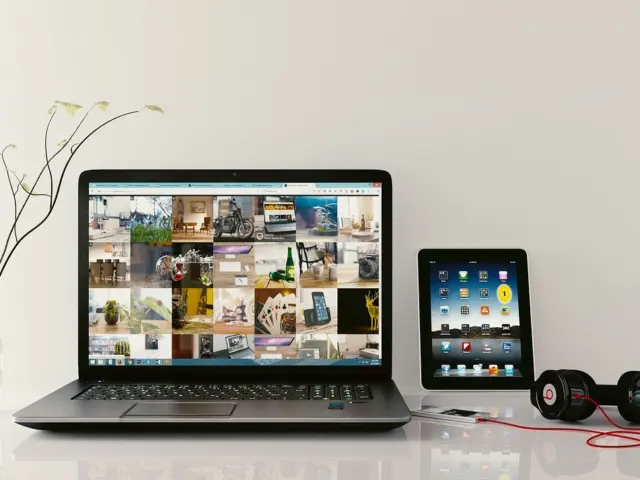
A recruiter opens your web developer portfolio website and meets a wall of thumbnails with no explanation. The fix is to lead with the work a client or employer should see first, then explain your role, the problem and the result.
Portfolio pages are a core part of web design with images best practices, because a developer’s proof is largely visual. Image sizing is covered in Best Image Size for Website: Practical Guidelines to Speed Up Pages and Look Great in 2026 – Imagesup, and the homepage banner is covered in What Is a Hero Image on a Website? How To Use One to Captivate Visitors in 2026 – Imagesup.
Misconceptions that weaken a developer portfolio
GitHub describes a portfolio website as generally a static website featuring work samples and other details. That definition is modest on purpose. The site is a showcase, not a product, so its job is to get a visitor from a first glance to a confident judgement about your work as quickly as possible. Most weak portfolios fail because of a handful of mistaken beliefs about what impresses.
| Common assumption | What works better | Planning use |
|---|---|---|
| More projects look more skilled | A focused selection matched to the clients or roles you want | Cut anything that does not support the work you want to be hired for |
| A thumbnail grid explains itself | Project pages that explain the brief, your contribution and the finished work | Treat thumbnails as links, and put the explanation on the project page |
| A long site feels more professional | A short site can be enough, such as About, Projects and Contact | Add a section only when a visitor needs it to decide |
| A screenshot alone proves the work | Each entry pairs a visual with the languages used, a short summary and a source-code link | Give every project the same set of fields so entries compare easily |
The project-selection and project-page advice comes from Colorlib’s portfolio guidance, and the entry fields and three-section example come from SiteGround’s developer portfolio examples.
What a web developer portfolio should include
A portfolio needs skills, projects and a way to get in touch. SiteGround’s sample portfolio is described as including all the necessary elements by listing skills, projects and a contact page. Another example gets by with just three sections, About, Projects and Contact, and still gives a client or employer what they need. That is a useful floor: begin there and add only what helps a visitor decide.
Portfolio section checklist
- About: say who you are and what kind of work you want. A visitor should know your focus before they reach the projects.
- Skills: list the languages and tools you actually use in the projects shown. A skill that no project demonstrates invites doubt rather than trust.
- Projects: start with the type of work a prospective client or employer should see first, then follow with the rest. Each entry should carry a visual, the languages used, a short summary and a source-code link.
- Live work: Wix’s examples guide says the strongest portfolios highlight real-world skills through live projects, clean layouts and clear explanations of how each site was built. Where a project is live, link to it.
- GitHub: link your profile or the specific repository for each project, so a reviewer can read the code behind the screenshots.
- Contact: make it easy to find and place it where a convinced visitor will look for it.
GitHub’s portfolio-website topic page lists public repositories, which makes it a practical place to see how other developers structure their sites. The Web Portfolios directory also collects guidance on what makes a great portfolio and how to avoid common mistakes. Use both as references, not templates, because your selection of work should reflect the roles you want.
Presenting project screenshots and case studies
A screenshot works best when a case study explains it. Visuals prove that the work exists, but they do not show what you did, and that is the thing a hiring reader is trying to judge. A thumbnail is a doorway to that explanation, not a substitute for it.

Give each project its own page
Colorlib’s guidance is to use separate project-detail pages to explain the brief, your contribution and the finished work rather than relying on thumbnails alone. This gives each screenshot a caption, a context and a purpose. It also keeps the homepage light, so a visitor can scan many projects and open only the ones that match what they need.
A simple case study structure
- State your role. Say what you built or decided, especially if the project was a team effort.
- Describe the problem. Explain what the client or product needed in a sentence or two.
- Show the result. Lead with the finished work and a live link where one exists.
- Add supporting images or links. Choose visuals that back up the story, such as the finished interface, and link to the source code.
Order the screenshots the way a reader would want them: the finished result first, then any supporting detail. Write a caption for each image that says what the reader is looking at and why it matters, so the visuals still make sense if the surrounding text is skimmed. Compress and size images before upload so project pages stay quick to open; the sizing guide linked above covers that in detail.
How many projects to show
No fixed count is supported as correct. The sound rule is to start with a focused selection relevant to the clients or roles you want. If you want front-end roles, show front-end work. If you want freelance clients with small business sites, show sites a small business would recognise.
- Cut for relevance, not for length. A project that does not support your target work dilutes the ones that do.
- Put the strongest first. Lead with the work a prospective client or employer should see first, since many visitors will not scroll far.
- Prefer finished and live over abandoned. A smaller set of projects with live links and clear write-ups reads better than a long list of half-explained experiments.
Add new work when it is better than what is already shown, and remove older entries that no longer represent the level you work at.
Checking the portfolio on phone and laptop
A portfolio is judged on whatever device the visitor happens to hold, so view yours on both a phone and a laptop before sharing it. Look at the project grid, the screenshots and the contact route on each. A clean layout is part of what Wix’s examples guide identifies in the strongest portfolios, and a layout that breaks on a small screen undercuts it.

If a screenshot looks soft or takes a long time to appear on either device, revisit its dimensions and compression using the image size guide. If the homepage opens with a large banner, the hero image article explains how to make it help rather than delay the projects underneath.
Frequently asked questions
| Question | Answer |
|---|---|
| Do I need a GitHub link on my portfolio? | It is strongly advisable. SiteGround’s example entries each include a source-code link, which lets a reviewer read the work behind the visual. |
| Is a small portfolio enough? | Yes, if it covers what a visitor needs. A site with only About, Projects and Contact can serve a client or employer well. |
| Should every project be live? | Live projects are a strength, since the Wix guide highlights them among the traits of the strongest portfolios. Where a project cannot be public, a screenshot with a clear case study still shows your role and result. |
| Where can I find portfolio examples to learn from? | Browse GitHub’s portfolio-website topic page for public repositories, or the Web Portfolios directory for submitted portfolios and guidance on common mistakes. |